Samsung Smart TVs don't support sideloading apps the way Firestick or Android TV boxes do, so the setup process works a little differently — mainly through MAC address activation. Here's the full walkthrough.
On your Samsung TV remote, press the Home button and navigate to the Apps section.
Search for "Smart IPTV" or "IPTV Smarters Pro" and install your preferred app directly from the Samsung Apps store.
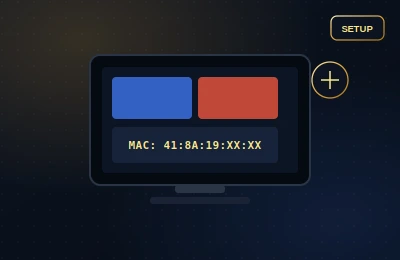
Open the installed app. It will display a unique MAC address on screen, similar to this:
This address is unique to your app installation and is how our system links your subscription to your TV.
Message our WhatsApp support team with the MAC address shown on your screen, along with your order details.
Once activated, close and reopen the app on your Samsung TV. Your channels and VOD library should load automatically — no username or password needed for MAC-based apps.